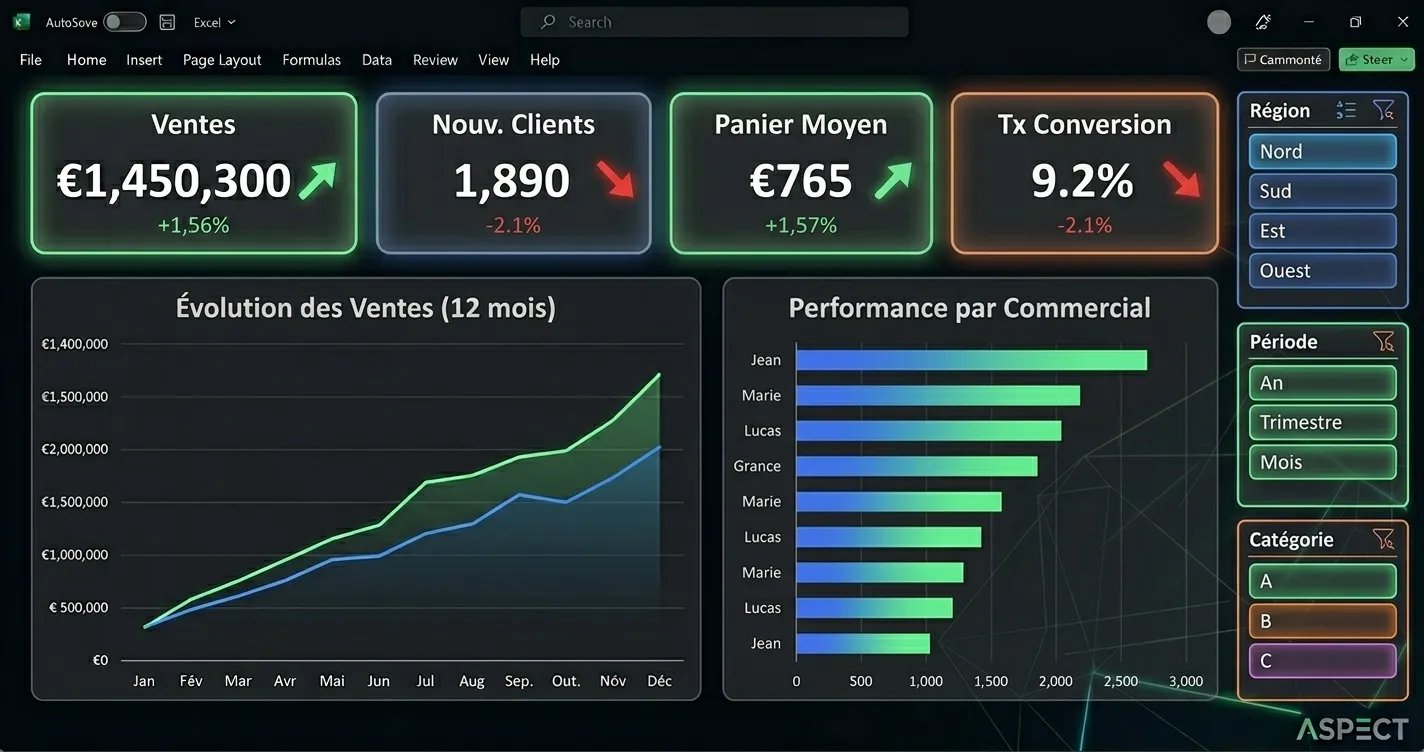
Building an Excel dashboard that stays both readable and genuinely useful is a real challenge for many small business owners and e-commerce managers. Between color-overloaded files, broken formulas, and data that never gets refreshed, a poorly designed dashboard often ends up forgotten in a folder.
Define the right indicators first
Before opening Excel, ask yourself a simple question: what decisions should this dashboard help you make? Weekly revenue, conversion rate, critical stock levels, or average delivery time are examples of useful indicators depending on your business. Avoid displaying everything that can be measured: an overloaded dashboard quickly loses its value.
A good indicator should fit in one sentence and trigger a clear action if the number looks bad.
Structure your data upstream
A reliable dashboard relies on clean data. Always separate your raw data (one sheet per source: sales, inventory, customers) from the summary sheet that displays charts. Use structured tables (Insert then Table) rather than plain ranges: formulas and charts then expand automatically as you add rows.
Choose the right visuals
A bar chart works well for comparing periods, a line chart for tracking a trend, and a simple indicator (a large number with a colored arrow) for showing whether a target was met. Pie charts should be reserved for simple breakdowns with few categories, otherwise they become hard to read.
A few settings that make a real difference:
- Set a consistent color code (green, orange, red) applied through conditional formatting.
- Use slicers to filter by period or category without touching the formulas.
- Limit the number of charts per page to 4 or 5 to keep an overview at a glance.
Automate the updates
The real challenge with an Excel dashboard isn't creating it, but maintaining it over time. If data comes from a manual export every week, the risk of forgetting is high. Formulas like XLOOKUP, SUMIFS, or PivotTables connected to an external source help reduce manual work. To go further, a Power Query connection to a shared file or database removes a good part of the manual entry.
If your data comes from several tools (online store, CRM, social media), it quickly becomes worth automating its collection rather than copying and pasting it by hand every Monday morning.
Share the dashboard without losing control
An Excel dashboard shared by email quickly becomes outdated once a copy starts circulating. Favor a file hosted on a shared space (SharePoint or OneDrive) so everyone views the same live version, with read-only access for people who don't need to edit the formulas.
Take the next step
Building an Excel dashboard that stays reliable over time often requires some guidance, especially when several data sources need to be combined automatically. If you'd like to save time on this setup, you can check pricing or book a call for a free first conversation about your reporting needs.